


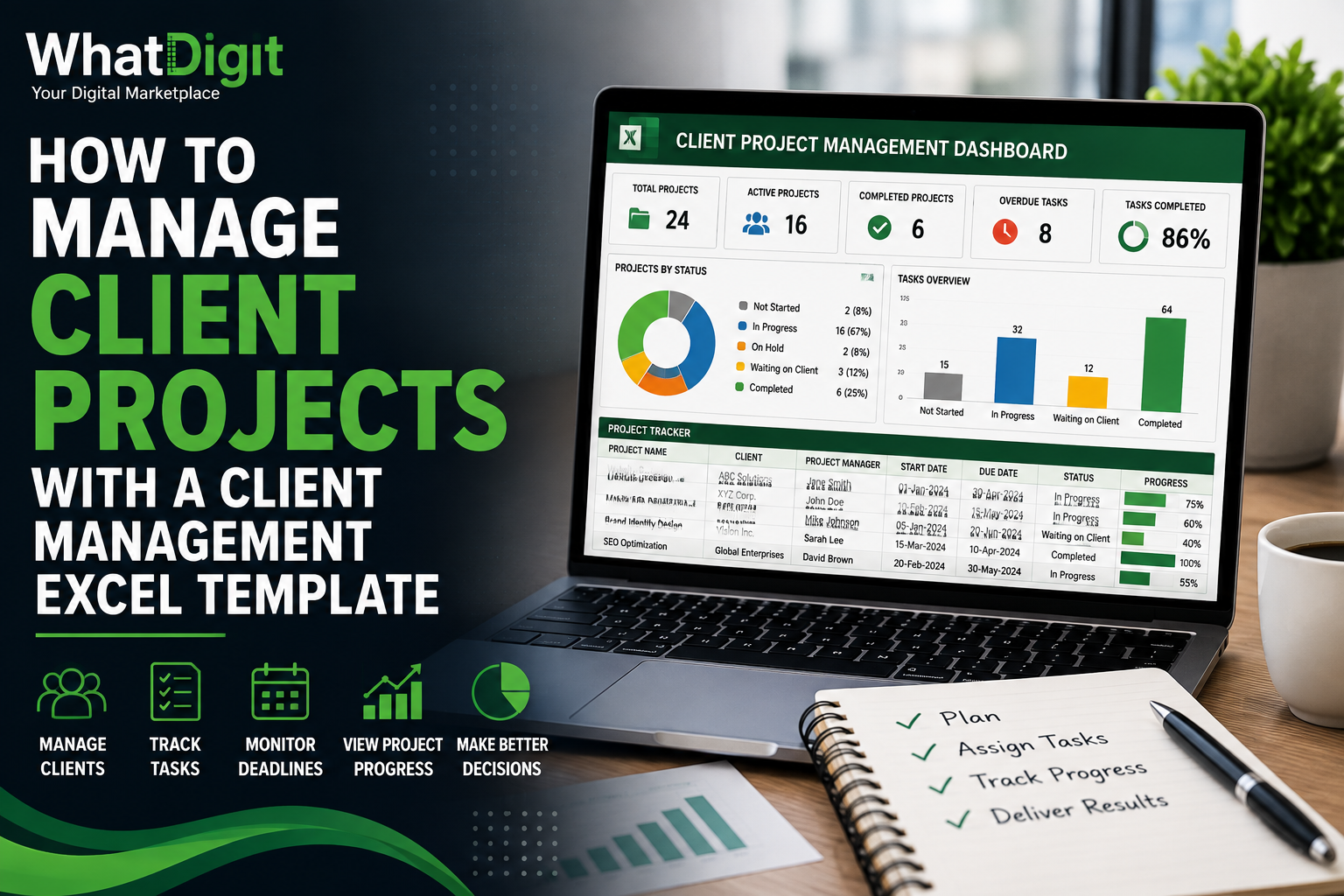
Use a client management Excel template to organize projects, tasks, deadlines, client communication, follow-ups, and project reporting.
Managing client projects becomes difficult when information is scattered across emails, notes, calendars, task lists, and separate spreadsheets. A client management Excel template can bring core project information into one structured, practical, and centralized workspace for teams. It can help teams organize client details, define project stages, assign tasks, monitor deadlines, record communication, and review progress without maintaining disconnected files. The real value comes from creating a practical operating workflow that connects client records with project execution effectively.
Why Use Excel for Client Project Management?
Excel can work well for client projects when the workflow is relatively structured and the team needs a flexible, familiar tool. A well-designed template can combine contact information, project records, tasks, dates, status fields, and reporting in one workbook. That central structure reduces the need to search through multiple locations for basic project information.
However, Excel is not automatically suitable for every project. Large teams, highly complex projects, extensive permissions, or advanced collaboration requirements may call for dedicated project or CRM software. The decision should depend on workflow complexity rather than the assumption that one tool fits every business.
Connect Client Records With Project Information
A client project usually contains information that extends beyond a contact record. The business may need the client name, project name, project owner, start date, deadline, budget, priority, status, deliverables, and next action.
Keeping these fields connected helps users see the relationship between the customer and the work being delivered. Instead of maintaining a client list in one file and a project tracker somewhere else, the workbook can create a shared structure.
Useful project fields can include:
- Client or company name
- Project name
- Project owner
- Project status
- Start date
- Target completion date
- Priority
- Budget or project value
- Current phase
- Next action
- Notes
The exact fields should reflect the business process. Adding fields that nobody uses creates clutter and increases maintenance.
Create a Single Source of Project Information
A central workbook can provide a consistent location for project information. This matters when several people contribute to client work because inconsistent records can create confusion about ownership, deadlines, and status.
For example, a project manager may need to know whether a deliverable has been sent, whether the client has responded, and which task comes next. If each answer exists in a different place, coordination takes more effort. A centralized template can make those details easier to locate.
Build a Clear Project Workflow
A client management Excel template becomes more useful when it reflects the actual project lifecycle. Rather than treating the workbook as a collection of unrelated worksheets, structure it around the sequence of work.
A typical client project might move through stages such as:
- New project
- Requirements review
- Planning
- Active execution
- Client review
- Revisions
- Final delivery
- Completion
Not every business needs these exact stages. A marketing agency, consultant, designer, and service provider may each use different workflows.
Define Project Stages
Clear stages make project status easier to interpret. A status such as “Active” provides limited information, while a stage such as “Client Review” tells the team what is currently happening.
Status fields can use standardized values such as:
- Not Started
- In Progress
- Waiting on Client
- At Risk
- Completed
- On Hold
- Canceled
Dropdown lists can reduce inconsistent entries. Consequently, filtering and reporting become more reliable because users select from the same set of status values.
Connect Stages to Next Actions
Status alone does not tell a team what to do next. A stronger project tracker pairs each project with a next action and due date.
For example, a project marked “Waiting on Client” could have a next action of “Follow up on approval” with a specific date. That creates a direct connection between project status and execution.
Track Tasks, Owners, and Deadlines
Projects fail operationally when responsibilities are unclear. A task list can address that problem by identifying what needs to happen, who owns it, and when it is due.
A practical task tracker may contain:
- Project name
- Task description
- Assigned owner
- Priority
- Start date
- Due date
- Status
- Completion date
- Dependency
- Notes
The owner field is particularly useful for teams. Without clear ownership, tasks can remain visible in a spreadsheet while nobody takes responsibility for completing them.
Monitor Deadlines With Date-Based Logic
Dates become more useful when the workbook calculates the relationship between the current date and the due date. Formulas can categorize tasks as upcoming, due, overdue, or completed.
For example, a project tracker can calculate remaining days and flag overdue tasks using conditional formatting. This allows users to focus attention on exceptions instead of manually reviewing every deadline.
Manage Client Communication Alongside Project Work
Client communication is part of project execution. A team may need to record meetings, emails, approvals, feedback, requests, and follow-up commitments.
A communication log can include:
- Date
- Client
- Contact person
- Communication type
- Subject
- Summary
- Action required
- Responsible person
- Follow-up date
- Status
This record can help maintain continuity when responsibility moves between team members. It also gives the project manager a clearer view of recent interactions.
Track Approvals and Client Dependencies
Many client projects depend on information or decisions from the customer. A project may remain technically active while progress has stopped because the client has not supplied content, approved a draft, or answered a question.
A “Waiting on Client” status can make these dependencies visible. Adding the requested item and follow-up date provides further clarity.
Use Dashboards for Project Visibility
A dashboard can summarize project information without requiring managers to inspect every record. The most useful dashboard elements depend on the business, but common metrics include active projects, projects by status, overdue tasks, upcoming deadlines, and work assigned to each team member.
A visual summary can make patterns easier to spot. For example, several projects showing “Waiting on Client” may indicate a communication bottleneck rather than a staffing issue.
Choose Metrics That Support Decisions
A dashboard should not contain every possible number. Too many metrics can make the screen harder to interpret.
Useful project KPIs may include:
- Active projects
- Projects due soon
- Overdue tasks
- Projects at risk
- Completed projects
- Tasks by owner
- Projects by stage
- Client follow-ups due
- Project value
Each metric should answer a management question. If nobody uses a metric to make a decision or take an action, it may not belong on the dashboard.
Use Charts Carefully
Charts can show project distribution, workload, status, and completion trends. However, the chart type should match the information.
A column chart can compare projects by stage. A line chart can show completed work over time. A doughnut chart can show proportions when there are only a few meaningful categories.
Visual elements should support interpretation rather than decoration. A simple, accurate chart is more useful than a complicated visual that requires explanation.
Add Formulas and Automation Where They Reduce Work
Automation can make a client management Excel template more practical by reducing repetitive calculations. Formulas can calculate project duration, remaining days, completion percentages, overdue status, totals, and summary metrics.
Useful automated fields may include:
- Days remaining
- Project age
- Task completion rate
- Overdue status
- Open task count
- Project progress
- Budget variance
- Follow-up status
The goal is not to automate everything. Manual inputs should remain clear, while repetitive calculations should happen automatically when practical.
Keep Automated Logic Maintainable
Complex formulas can create problems when users cannot tell how they work. A professionally structured workbook should make calculated fields distinguishable from manual input fields.
Instructions should also explain important formulas, dropdowns, dashboard dependencies, and data-entry rules. That documentation becomes increasingly valuable when several employees use the same workbook.
Track Project Budgets and Financial Information
Some client projects require budget tracking. A project management workbook can compare planned amounts with actual costs or project value, provided the financial structure matches the business process.
Possible fields include:
- Estimated project value
- Approved budget
- Actual costs
- Amount billed
- Amount received
- Remaining budget
- Variance
Financial tracking should remain separate enough from operational task data to prevent confusion, while still allowing project-level summaries.
Customize the Template to Match Your Workflow
No standard workbook will perfectly match every business. Customization can make a template more useful when the changes reflect actual workflow requirements.
Possible adjustments include:
- Adding business-specific fields
- Changing project stages
- Modifying task statuses
- Adding service categories
- Updating priority levels
- Creating custom dashboard metrics
- Adding team members
- Adjusting dropdown lists
However, customization should be controlled. Removing or changing cells that feed formulas, charts, or reports can break the workbook.
Before modifying a template, identify which areas are intended for user input and which areas contain calculations or reporting logic.
Make the Workbook Scalable
A template should remain manageable as project and client records increase. Scalability does not mean supporting unlimited data. It means adding realistic amounts of information without requiring constant restructuring.
Structured tables, consistent columns, filters, expandable ranges, and organized worksheets can support growth. A workbook becomes harder to maintain when users repeatedly copy formulas manually, duplicate worksheets for every client, or store the same information in multiple places.
Avoid Duplicate Data
Duplicate client and project information creates maintenance risk. If a phone number, project owner, or deadline changes, users may need to update it in multiple locations.
A better structure minimizes unnecessary duplication. Store core client information in a central client database and connect project records to that information where practical.
This reduces inconsistent records and makes updates easier.
Excel Compatibility and Collaboration
Compatibility matters because Excel workbooks can behave differently depending on the application and version. Buyers should check whether the template relies on newer functions, macros, external connections, or other features that may not work in their environment.
Teams should also consider how they share the workbook. If multiple people edit the same file, establish clear rules for data entry, ownership, version control, and file storage.
Free Versus Paid Templates
A free client management template may be enough for a freelancer or small operation with a limited number of projects. Basic fields for clients, tasks, deadlines, and status can cover straightforward workflows.
A paid template may provide stronger value when it includes connected worksheets, automated calculations, dashboards, standardized data entry, documentation, and more flexible reporting.
Before deciding to buy Client Management Excel Template online in USA, compare the amount of setup and maintenance the template saves against its purchase price. The useful question is not whether the template is cheap. It is whether its functionality fits the workflow.
Common Mistakes When Managing Projects in Excel
Spreadsheet problems often come from poor structure rather than the software itself.
Common mistakes include:
- Using inconsistent status names
- Entering dates in different formats
- Mixing client and project data
- Duplicating records
- Leaving owners blank
- Failing to update completed tasks
- Building reports from incomplete data
- Editing formula cells accidentally
- Creating too many worksheets
- Adding unnecessary dashboard metrics
How to Evaluate a Client Project Template Before Purchase
A preview should reveal more than colors and screenshots. Evaluate how the workbook handles actual project-management tasks.
Check whether you can:
- Add a new client.
- Create a project.
- Assign an owner.
- Add tasks and deadlines.
- Record communication.
- Change project status.
- Identify overdue work.
- Review project progress.
- View dashboard summaries.
- Customize relevant fields.
Also check whether instructions explain the workbook structure and whether the formulas remain functional when additional records are added.
Who Benefits Most From This Type of Template?
Different professionals can use client project templates in different ways.
Freelancers may use them to manage multiple customers, deliverables, deadlines, and follow-ups. Consultants can track engagements, milestones, client requests, and project status. Agencies may need stronger task ownership, approval tracking, workload monitoring, and reporting.
Small service businesses can use a centralized workbook to coordinate client work without immediately adopting a complex system. Larger organizations, however, may encounter limitations around permissions, collaboration, integrations, and data volume.
10 Frequently Asked Questions
Can Excel manage client projects effectively?
Excel can manage client projects effectively when the workflow fits a spreadsheet-based system. A structured template can track clients, projects, tasks, deadlines, communication, status, and reporting. However, complex projects with extensive collaboration, permissions, integrations, or large data volumes may require specialized project-management software.
What should a client project Excel template include?
Core components typically include client information, project details, stages, task tracking, owners, deadlines, communication records, follow-ups, and reporting. Depending on the business, budget fields, approval tracking, dependencies, and dashboards may also provide value. The template should match the actual workflow rather than maximize the number of features.
How can Excel help prevent missed project deadlines?
Excel can calculate remaining days, identify overdue tasks, and apply conditional formatting to important dates. A task owner and due-date field also make responsibility clearer. These functions improve visibility, but they do not replace active project management or guarantee that assigned work will be completed.
Can a client management template track multiple projects?
Yes, a properly structured workbook can track multiple projects by linking project records to client names or IDs. Filters can then isolate projects by client, owner, status, priority, or deadline. A scalable structure is preferable to creating a completely separate workbook for every project.
Can client communication be tracked in Excel?
Yes. A communication log can record dates, contacts, communication types, summaries, action items, responsible team members, and follow-up dates. This provides project continuity when several people interact with the same client. The level of detail should remain practical so maintaining the log does not become an administrative burden.
Are dashboards necessary for project management?
Dashboards are useful when managers need quick visibility across several projects. They can summarize active work, overdue tasks, project stages, workload, and deadlines. A small operation may not need one. Adding a dashboard makes sense when the information supports regular decisions rather than simply making the workbook appear more sophisticated.
Can a client project template be customized?
Many templates can be customized, but the safe level of modification varies. Users can often change categories, stages, dropdown values, fields, and dashboard metrics. Formula cells and linked ranges require more caution. Before editing, identify which parts are intended for manual input and which parts drive calculations.
Is Excel suitable for a growing client-service business?
Excel can remain useful as a business grows if the number of projects and collaborators remains manageable. However, increasing requirements for permissions, simultaneous editing, integrations, audit trails, and advanced automation can expose spreadsheet limitations. Businesses should reassess their tools when the workflow becomes difficult to control.
What makes a client project template easy to maintain?
Clear data-entry areas, standardized dropdowns, consistent date formats, structured tables, protected formulas, logical worksheet organization, and useful instructions all support maintenance. Avoiding unnecessary duplicate data also helps. A template should allow users to add records and update information without repeatedly rebuilding formulas or reports.
How should a business compare two project management templates?
Compare workflow fit before visual appearance. Check client tracking, project stages, tasks, deadlines, communication, automation, dashboards, customization, compatibility, documentation, and scalability. Then test how easily new records can be added. A simpler template that matches the operating process can be more useful than a larger workbook with unused features.
Conclusion
A client management Excel template can turn scattered project information into a structured operating workflow. Its strongest value comes from connecting client records, project stages, tasks, deadlines, communication, follow-ups, and reporting. Choose a structure that reflects actual work, use automation for repetitive calculations, keep data consistent, and customize only where necessary. Excel can support many client-service workflows, but its limitations should be considered as collaboration and complexity increase.
Comments (0)