


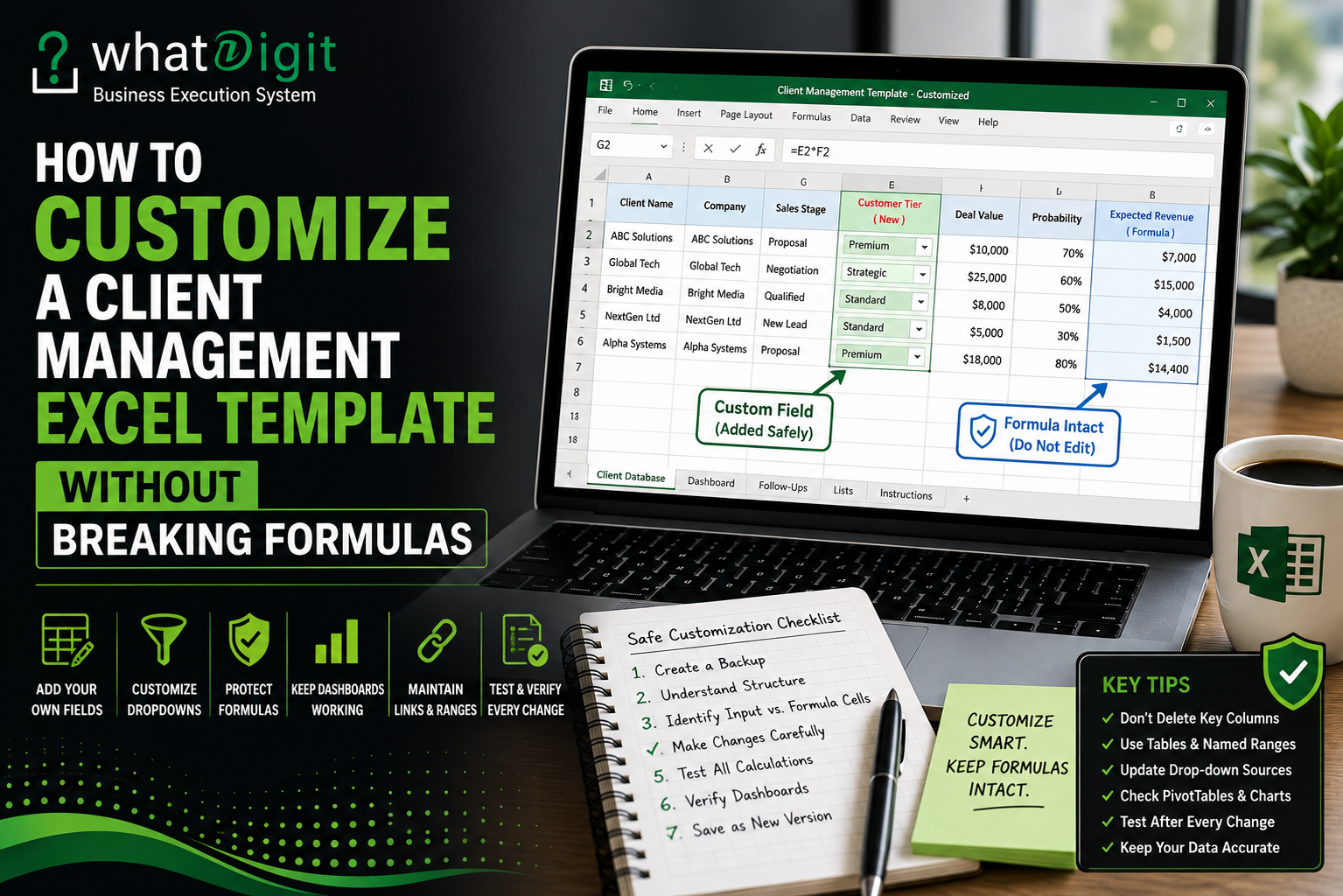
A client management Excel template is supposed to make work easier. But sooner or later, most businesses want to customize it.
You may want to add a new client category, change sales stages, include an extra field, modify the dashboard, add your company name, or remove columns you do not use.
That is completely reasonable.
The problem is that Excel templates are often interconnected. A cell that looks like an ordinary field may feed a formula somewhere else. A dashboard chart may depend on a specific table range. A dropdown may use a hidden list. A total may depend on a particular column. Delete or rename the wrong thing, and suddenly a perfectly functional workbook starts returning errors or displaying incorrect information.
This is why customizing a client management Excel template requires more care than simply changing its appearance.
The good news is that most practical customizations can be done safely if you understand the difference between input areas, calculated areas, reference data, and dashboard components.
The goal is not to avoid customization.
The goal is to customize the workbook without damaging the logic that makes it work.
Why Customizing an Excel Template Can Break Formulas
Excel formulas often depend on other cells, ranges, tables, worksheets, or named ranges.
For example, imagine a client management sheet contains:
- Client Name
- Sales Stage
- Deal Value
- Probability
- Expected Revenue
The expected revenue might be calculated using:
Deal Value × Probability
If you delete the probability column, move cells incorrectly, or overwrite the formula, the calculation may stop working.
The same principle applies to dashboards.
A dashboard may calculate:
- Total Clients
- Active Clients
- Open Opportunities
- Pipeline Value
- Overdue Follow-Ups
Those numbers may depend on formulas located on another worksheet.
Therefore, the visible dashboard is only the surface. The workbook underneath may contain a network of dependencies.
Before You Customize: Understand the Workbook
The biggest mistake people make is editing immediately.
Before changing anything, spend a few minutes understanding the workbook.
Look at:
- Worksheet names
- Main data tables
- Input cells
- Formula cells
- Dashboard sheets
- Dropdown fields
- Hidden worksheets
- Instructions
- Named ranges
- PivotTables
- Charts
- Conditional formatting
You do not need to understand every formula in the workbook.
You do need to know which parts are designed for user input and which parts are doing calculations.
1. Always Create a Backup Copy First
This is the simplest and most important rule.
Do not experiment directly on your original template.
Create a copy before making changes.
For example:
Original:
Client Management Template.xlsx
Working Copy:
Client Management Template - Customized.xlsx
Keep the original untouched.
If a customization breaks a formula, corrupts formatting, or produces incorrect dashboard results, you can return to the original version.
This is particularly important when the workbook contains complex formulas or automation.
2. Identify Input Cells Before Editing
Most well-designed templates have areas intended for users to enter information.
These might include:
- Client name
- Contact information
- Phone
- Sales stage
- Follow-up date
- Priority
- Notes
- Opportunity value
These are generally safer areas to customize around.
Calculated fields, however, should be treated differently.
For example:
Days Since Last Contact
or
Pipeline Value
may be generated automatically.
If you see a formula in the cell rather than manually entered data, assume that the cell has a purpose until you understand it.
A Simple Rule
If you did not create the formula, do not overwrite it until you understand what it does.
That one rule prevents a lot of unnecessary damage.
3. Learn to Recognize Excel Formulas
Before customizing a workbook, become comfortable identifying formulas.
A formula usually begins with:
=
For example:
=SUM(E2:E100)
or:
=IF(D2="Won",E2,0)
or:
=COUNTIF(C:C,"Active")
When you select a formula cell, Excel displays the formula in the formula bar.
This immediately tells you whether the cell contains a manually entered value or a calculation.
If you are customizing a client management workbook, inspect important cells before changing them.
4. Do Not Delete Columns Randomly
Deleting a column may look harmless.
It isn't always.
Suppose a dashboard uses:
=SUM(ClientData[Opportunity Value])
If you remove or rename the Opportunity Value column, the formula may stop working.
Other formulas may reference cell locations directly.
For example:
=SUM(E2:E500)
If you move or delete the wrong column, the calculation may change.
Safer Approach
If you do not need a field, consider whether you actually need to delete it.
Sometimes it is safer to:
- Hide the column
- Leave it unused
- Rename it carefully
- Modify dependent formulas
Hiding an unnecessary field is often safer than deleting it.
5. Be Careful When Renaming Columns
Renaming columns can be perfectly safe in some Excel structures and problematic in others.
If the workbook uses an Excel Table with structured references, formulas may refer to column names.
For example:
=SUM(ClientTable[Deal Value])
Changing Deal Value to Opportunity Amount may affect formulas that reference the original column name, depending on how the workbook is structured.
Before renaming a column, search the workbook for references to the existing field.
If the column feeds formulas, charts, PivotTables, or dashboards, update those dependencies deliberately.
6. Use Excel Tables Properly
Many client management templates use Excel Tables because tables make structured data easier to manage.
A table can provide:
- Automatic expansion
- Filtering
- Structured references
- Consistent formatting
- Formula propagation
- Easier reporting
For example, instead of using:
=SUM(E2:E1000)
a formula might use:
=SUM(ClientTable[Opportunity Value])
This is often easier to maintain when records are added.
Why Tables Matter for Customization
If you add new client records outside the table, your formulas or dashboard may not include them.
That can create a particularly dangerous problem:
The spreadsheet looks correct, but the report is incomplete.
Always understand where the main data table begins and ends before adding information.
7. Add New Columns Carefully
Adding a new field is one of the most common customizations.
For example, your template may contain:
- Client Name
- Industry
- Contact
- Sales Stage
- Deal Value
You may want to add:
Customer Tier
That is usually reasonable.
But before inserting the column, determine whether the existing workbook uses:
- Fixed cell references
- Structured table references
- PivotTables
- Charts
- Named ranges
- Data validation
- Conditional formatting
Adding a field inside an Excel Table is generally more manageable than inserting random cells into a complex dashboard.
8. Use Existing Fields as a Model
If you want to add a new field, inspect how similar existing fields work.
For example, suppose Sales Stage uses a dropdown.
You want to create a Customer Tier field with:
- Standard
- Premium
- Strategic
Instead of manually typing values into every record, copy the underlying approach used by the existing structured field.
Check:
- Data Validation
- Dropdown source
- Formatting
- Table structure
- Conditional formatting
This keeps your customization consistent with the workbook.
9. Be Careful With Dropdown Lists
Dropdown menus often depend on a separate list of values.
For example:
Sales Stage
- New Lead
- Contacted
- Qualified
- Proposal
- Negotiation
- Won
- Lost
The visible dropdown may be connected to a hidden or separate worksheet.
If you simply type a new value into the cell instead of adding it to the underlying list, the new value may not become part of the dropdown.
Safer Method
Find the source list used by the dropdown.
Add the new option there.
Then verify that the dropdown displays it correctly.
10. Do Not Break Data Validation
Data validation controls what users can enter into a cell.
It can be used for:
- Dropdown lists
- Dates
- Numbers
- Required ranges
- Custom conditions
For example, a template might restrict a priority field to:
Low / Medium / High
If you replace the cell or copy formatting incorrectly, you may accidentally remove the validation.
The spreadsheet may still look exactly the same.
But users will now be able to enter inconsistent values.
That can eventually damage reporting.
11. Protect Formula Cells When Possible
If a template will be used by multiple people, consider protecting formula areas.
This can help prevent users from accidentally replacing formulas with manually entered values.
For example, a worksheet might contain:
User Input
- Client Name
- Sales Stage
- Deal Value
- Follow-Up Date
and:
Calculated
- Days Since Contact
- Follow-Up Status
- Expected Revenue
The second group should generally be protected or clearly distinguished.
Protection does not replace good training, but it creates an additional safeguard.
12. Do Not Edit Dashboard Formulas Just to Change Their Appearance
A dashboard can contain formulas behind:
- KPI cards
- Charts
- Totals
- Percentages
- Status indicators
If your goal is only to change the appearance, work on:
- Fonts
- Borders
- Alignment
- Number formatting
- Spacing
- Chart formatting
Do not modify the underlying formulas unless you actually need to change the calculation.
This keeps visual customization separate from functional customization.
13. Customize the Dashboard Without Breaking Its Logic
You may want to add your company-specific KPI.
For example, the existing dashboard shows:
- Total Clients
- Active Clients
- Open Opportunities
- Pipeline Value
You want to add:
Renewals Due This Month
The safe approach is to create a separate calculation using the appropriate source data and then connect it to a new dashboard element.
Do not simply overwrite an existing KPI because it occupies the position you want.
First understand what the existing KPI is calculating.
14. Understand Conditional Formatting
Conditional formatting can automatically change how cells appear based on their values.
For example:
- Overdue → highlighted
- Completed → normal
- High Priority → emphasized
- Large Opportunity → highlighted
If you add a new column, you may also want the same conditional formatting.
Instead of recreating rules manually, inspect the existing rule.
Check:
- Applies to
- Formula
- Cell range
- Conditions
A rule applied to:
A2:G500
may need to become:
A2:H500
if you add another relevant column.
But do not blindly expand every conditional-formatting rule. Some rules are intentionally limited to specific areas.
15. Be Careful With Merged Cells
Merged cells are common in dashboard designs.
They can look attractive but make structural editing more complicated.
Avoid inserting rows or columns directly through heavily merged dashboard areas unless you understand how the layout works.
If you need additional dashboard content, it may be safer to create space in an existing unmerged area.
16. Do Not Rename Worksheets Without Checking Dependencies
Worksheet names can be referenced by formulas.
For example:
='Client Data'!E10
If you rename the sheet, Excel often updates direct references automatically.
But other elements may still depend on the original structure, especially with:
- VBA
- External links
- Named ranges
- Power Query
- PivotTables
- Documentation
Therefore, worksheet renaming should be deliberate.
If there is no reason to rename a worksheet, leaving the original name intact is often safer.
17. Hidden Sheets May Be Important
Some templates contain hidden worksheets that users rarely see.
These sheets may contain:
- Dropdown values
- Helper calculations
- Lookup tables
- Dashboard data
- Supporting lists
Deleting or modifying them without understanding their purpose can break the workbook.
If you see hidden worksheets, do not assume they are unnecessary.
They may be part of the template's internal architecture.
18. Test Every Major Customization
After making a significant change, test the workbook.
Do not wait until you have completed ten customizations.
Test after each major change.
For example:
Test 1
Add a new client.
Check whether the client appears in relevant summaries.
Test 2
Change a sales stage.
Check whether the dashboard updates.
Test 3
Enter a new opportunity value.
Check whether pipeline totals change correctly.
Test 4
Add a follow-up date.
Check whether the follow-up status works.
Test 5
Add a new category.
Check whether dropdowns and reports recognize it.
This incremental testing makes troubleshooting much easier.
19. Keep a Customization Log
If you make many changes, maintain a simple record.
For example:
Change
Sheet
Reason
Date
Added Customer Tier
Client Data
Segmentation
Aug 27
Added Renewal Date
Client Data
Renewal tracking
Aug 27
Added KPI
Dashboard
Management reporting
Aug 27
This may seem unnecessary for a small change.
It becomes extremely useful six months later when someone asks:
“Why does this workbook work differently from the original?”
20. Keep the Original Template Version
Do not overwrite the original file.
Keep:
Original Template
and:
Customized Version
separately.
If the template creator releases an updated version later, you can compare the original and customized workbooks.
This is particularly important if the template is purchased and periodically updated.
Common Customizations That Are Usually Safer
Some customizations are relatively low-risk when performed carefully.
Company Branding
Adding:
- Company name
- Logo
- Contact information
- Brand colors
usually affects presentation rather than calculations.
Column Width
Changing column width does not normally affect formulas.
Font Changes
Changing fonts generally does not affect workbook logic.
Number Formatting
Changing:
- Currency
- Date display
- Decimal places
can usually be done safely without changing the underlying values.
Freeze Panes
Freezing rows or columns is a usability change rather than a calculation change.
Page Layout
Adjusting print area, orientation, margins, and headers is generally separate from formula logic.
Customizations That Require More Caution
Be particularly careful with:
- Deleting columns
- Deleting rows containing formulas
- Renaming table columns
- Renaming worksheets
- Editing formulas
- Changing named ranges
- Modifying PivotTables
- Changing dropdown sources
- Editing conditional-formatting rules
- Moving dashboard elements
- Deleting hidden sheets
- Adding VBA or macros
These changes can affect other parts of the workbook.
What to Do If You Break a Formula
First, do not keep making random changes.
That usually makes the problem worse.
Instead:
Step 1: Undo
Use Ctrl + Z if the mistake was recent.
Step 2: Compare With the Original
Open the original workbook in another window.
Find the corresponding cell.
Step 3: Compare the Formula
Check whether the formula has changed.
Step 4: Check References
Look for:
- Wrong cell references
- Missing sheet names
- Incorrect ranges
- Broken table references
- Deleted columns
Step 5: Restore the Original Formula
If you know the correct formula, restore it.
Step 6: Re-test the Workbook
Change a test record and confirm that the result updates correctly.
If the workbook uses advanced formulas, Power Query, VBA, or complex dependencies and you are unsure what broke, restoring from the original copy may be safer than trying to repair it blindly.
Example: Adding a Customer Tier Safely
Suppose your client management template contains:
Client
Sales Stage
Deal Value
Follow-Up
ABC Ltd
Proposal
$5,000
Aug 30
XYZ Inc
Negotiation
$12,000
Sep 2
You want to add:
Customer Tier
with:
- Standard
- Premium
- Strategic
A sensible customization process would be:
Step 1
Save a backup.
Step 2
Identify the main client data table.
Step 3
Add the new column inside the table.
Step 4
Create the Customer Tier dropdown.
Step 5
Add the three allowed values.
Step 6
Apply consistent formatting.
Step 7
Check whether dashboard formulas need to use the new field.
Step 8
Add sample data.
Step 9
Verify that existing formulas still work.
Step 10
Save the customized version separately.
This is far safer than simply inserting a random column and hoping the workbook continues working.
How to Customize a Client Management Template Without Losing Its Value
Customization should improve the workflow rather than turn the template into an entirely different system.
Before adding a feature, ask:
Does this solve a real problem?
For example, if your business needs to track renewal dates, adding a renewal field makes sense.
If you want to add ten fields because they might be useful someday, that may make the workbook harder to maintain.
Every additional field creates another piece of information users have to understand and maintain.
A good client management system balances completeness with simplicity.
When You Should Not Customize the Template Yourself
There are situations where DIY customization is not the smartest option.
Consider getting expert help if the workbook contains:
- Complex VBA
- Macros
- Power Query
- Power Pivot
- External data connections
- Large PivotTable systems
- Multiple linked worksheets
- Complex dashboards
- Advanced named ranges
- Automated reporting
You can still customize these workbooks, but the cost of making a mistake is higher.
If the workbook is critical to business operations, experimentation on the production file is a bad idea.
Free vs. Premium Templates: Customization Differences
Free templates often provide a useful basic structure but may have limited documentation or customization support.
Premium templates may provide:
- Better organization
- More structured worksheets
- Instructions
- Automated calculations
- Dashboard systems
- More comprehensive tracking
- More flexible layouts
But again, premium does not automatically mean technically superior.
A poorly constructed premium workbook can be harder to customize than a simple free template.
The important factor is whether the workbook is well structured and documented.
A Practical Customization Checklist
Before you finalize your customized client management Excel template, check:
Data
- Are all client records intact?
- Are there duplicate records?
- Are required fields still present?
Formulas
- Are calculated cells still working?
- Are totals correct?
- Are references intact?
Dropdowns
- Do all dropdowns still work?
- Are new options available?
Dashboard
- Are KPI values correct?
- Do charts update?
- Are filters working?
Formatting
- Is the workbook visually consistent?
- Are important fields easy to identify?
Data Validation
- Are input restrictions still active?
Conditional Formatting
- Are overdue and priority indicators still working?
Tables
- Are new records included in the correct table?
Testing
- Have you tested the workbook using sample client records?
If all of these work correctly, your customization is much less likely to have introduced a hidden problem.
10 Frequently Asked Questions
Can I customize a client management Excel template?
Yes. Most Excel templates can be customized to some degree. You can often add fields, modify categories, change formatting, add company branding, adjust dashboards, and adapt the workbook to your workflow. The amount of safe customization depends on how complex the template is.
How can I customize an Excel template without breaking formulas?
Start by creating a backup and identifying input cells, formula cells, tables, dropdowns, named ranges, and dashboard dependencies. Make one major change at a time and test the workbook after each change. Avoid deleting or overwriting formulas unless you understand their purpose.
Is it safe to add a new column to an Excel template?
It can be, especially when the main data area is an Excel Table. However, you should first check whether formulas, PivotTables, charts, or dashboard calculations depend on the existing structure. Adding a column without checking dependencies can create incorrect reports.
Can I rename columns in a client management template?
Yes, but caution is required. Formulas may reference column names, particularly when the workbook uses structured table references. Before renaming a column, determine whether it is used by formulas, dashboards, PivotTables, or other workbook components.
Can I delete unused columns?
Sometimes. However, hiding an unused column may be safer than deleting it if other parts of the workbook depend on it. Always check whether the column is referenced by formulas, charts, tables, or reports before removing it.
How do I add a new dropdown option?
Find the list that supplies the dropdown's data validation. Add the new option to that source list and then verify that it appears in the dropdown. Do not assume that typing a new value directly into one cell will update the dropdown for the entire workbook.
Why did my Excel dashboard stop updating after customization?
The change may have affected a formula, table range, named range, PivotTable source, or other dependency used by the dashboard. Compare the customized workbook with the original and identify what changed immediately before the dashboard stopped updating.
Should I customize the original Excel template?
No. Create a backup or duplicate first. Keep the original template untouched so you can restore the workbook if a customization causes problems.
Can I change the colors and branding without breaking formulas?
Usually, yes. Changing fonts, colors, logos, borders, and many layout elements generally affects presentation rather than calculation logic. However, avoid changing cells that contain formulas simply because they look different from input cells.
When should I hire someone to customize the template?
Consider professional help when the workbook contains VBA, macros, Power Query, Power Pivot, external connections, complex dashboards, or many interconnected worksheets. If the spreadsheet is business-critical, professional customization can be safer than experimenting directly with the production file.
Conclusion
Customizing a client management Excel template is not difficult because Excel is fragile. It is difficult because a well-designed workbook often contains dependencies that are not immediately visible.
A client name field may be simple.
A dashboard showing total clients, pipeline value, or overdue follow-ups may depend on dozens of calculations underneath it.
That is why the safest approach is straightforward:
Back up the workbook → understand its structure → identify formulas and dependencies → make one change at a time → test → save a separate customized version.
For simple changes such as branding, formatting, column widths, and carefully adding structured fields, customization is usually manageable.
For deeper changes involving formulas, dashboards, PivotTables, macros, or automation, proceed more carefully.
The objective is not to make the template look different.
The objective is to make it fit your business better while preserving the functionality that makes the template useful in the first place.
Comments (0)